About updating filter jobs in Inspect
You can update an existing filter job in the Keywords panel in Inspect. You can add, remove, or edit the keywords within a filter job. After adding, modifying, or removing keywords, you can rerun a filter job within the current document population, which might have changed since the filter previously ran. To view the Keywords panel in Inspect, refer to View Keywords panel in Inspect.
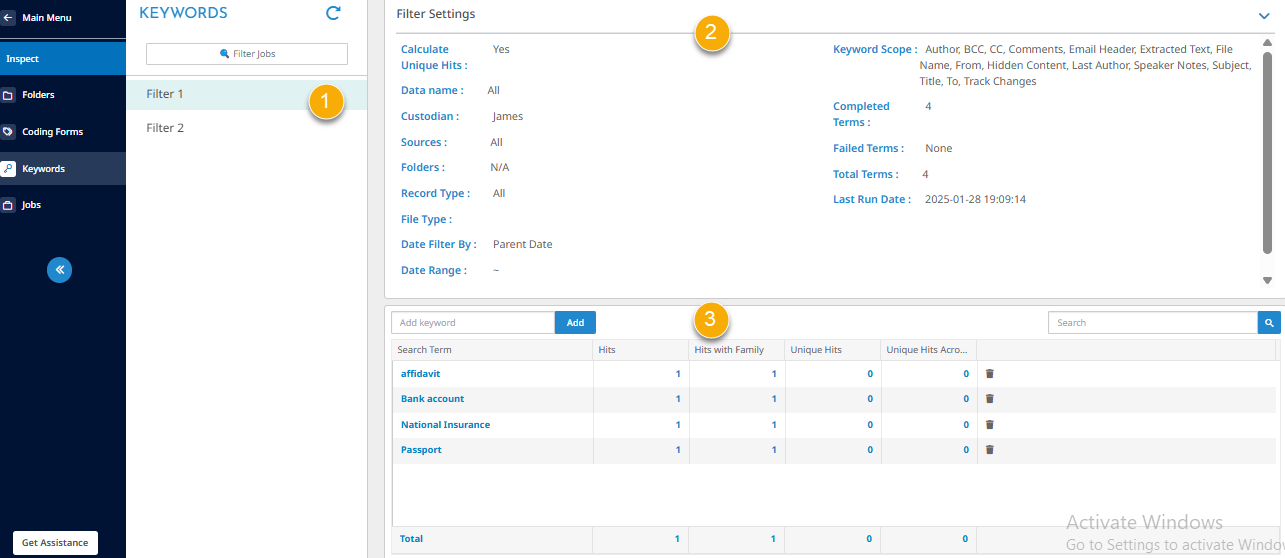
When you select a filter job in the KEYWORDS pane, the Keywords panel displays the Filter Settings and the Search Hit table.
- Filter jobs panel displays the filters that have been run on the project.
-
Filter Settings shows the parameters used when the filter job was last run.
-
Calculate Unique Hits. Shows whether the Calculate Unique Hits checkbox was selected when running the filter job.
-
Last Run Date shows when the filter job last ran. This date changes when you rerun the filter job.
-
For more information about the filter job, refer to View filter job details.
-
-
Search Hit table shows the keywords supplied and the number of hits returned for the keywords. Here, you can add, modify or delete keywords. You can also click a populated cell to view those documents in Inspect or Review. For filter jobs created before release Epiq Discover 3.9.1, this table may not show any keyword search hit counts. Rerun the filter job using the Refresh Filter option to get the search hit counts.
The table below shows the columns in the Search Hit table.
Column name Description Search Term Keywords supplied when running a filter job. Hits Number of search hits without family. Hits with Family Number of search hits with family. Unique Hits Number of unique search hits without family. Unique Hits Across Family Number of unique family hits. For example, the following scenarios count as unique hits across families:
-
A search term appears in a parent document but not in any of its attachments.
-
A search term appears in a child document but not in the parent or any other attachment in its family.
The number of terms shown can appear higher than the original terms. This results from the system splitting terms to accommodate term expansion based on the complexity of original search term.
-
The image below shows an example of the Keywords panel in Inspect.
The following list provides related topics.